Guide
How to take photos that skip the camera roll
The iPhone Camera app always saves to your photo library, and from there to iCloud Photos, Memories and widgets; there’s no setting to stop it. To take a photo that skips the camera roll, take it inside another app that keeps it itself: Notes, with Save to Photos off in Settings → Apps → Notes, or a vault app’s own camera, which encrypts the photo the moment you save it.
Settings checked against Apple’s iPhone User Guide for iOS 27 and the iOS 18 Notes settings on Oct 24, 2026.
Why the camera roll is the wrong place for some photos
A photo taken with Camera goes straight into Photos. From there:
- iCloud Photos uploads it to every device on your Apple Account.
- Memories, featured photos and the Photos widget can pick it.
- Shared Library, if you use one, can add it automatically when other members are nearby or when you’re at home.
- Anyone with your passcode can scroll to it.
Even if you hide or delete it right after, it has already synced, and a deleted photo sits in Recently Deleted for 30 days. Opening Camera from the Lock Screen doesn’t change where photos are saved; it only limits what someone can browse without unlocking.
For things like an ID, a medical photo, a document you’re photographing for a form, or anything private, it’s better if the photo never lands there.
Option 1: Take the photo inside Notes
- Go to Settings → Apps → Notes and make sure Save to Photos is off. Apple’s guide describes it as an option you turn on, so it’s off unless you changed it.
- Open Notes, open or create a note.
- Tap the Attachments button (the paperclip) and choose to take a photo or video.
- Take the photo and tap Use Photo.
The photo lives only in the note.
The limits:
- The note syncs with its account. In iCloud, Notes uses standard data protection unless you turn on Advanced Data Protection. To keep it on the phone only, use the On My iPhone account (turn it on in Settings → Apps → Notes → “On My iPhone” Account).
- You can lock a note with photos, but Apple says not one with video, audio, PDF, Keynote, Pages or Numbers attachments.
- A locked note’s title stays visible. See how to lock photos on iPhone.
Option 2: A secure camera that saves into a vault
Bunker’s Secure Camera is built for this. It’s free on every tier.
- Open a vault and tap +, then Take Photo or Video.
- Choose Photo or Video, front or back camera, and flash.
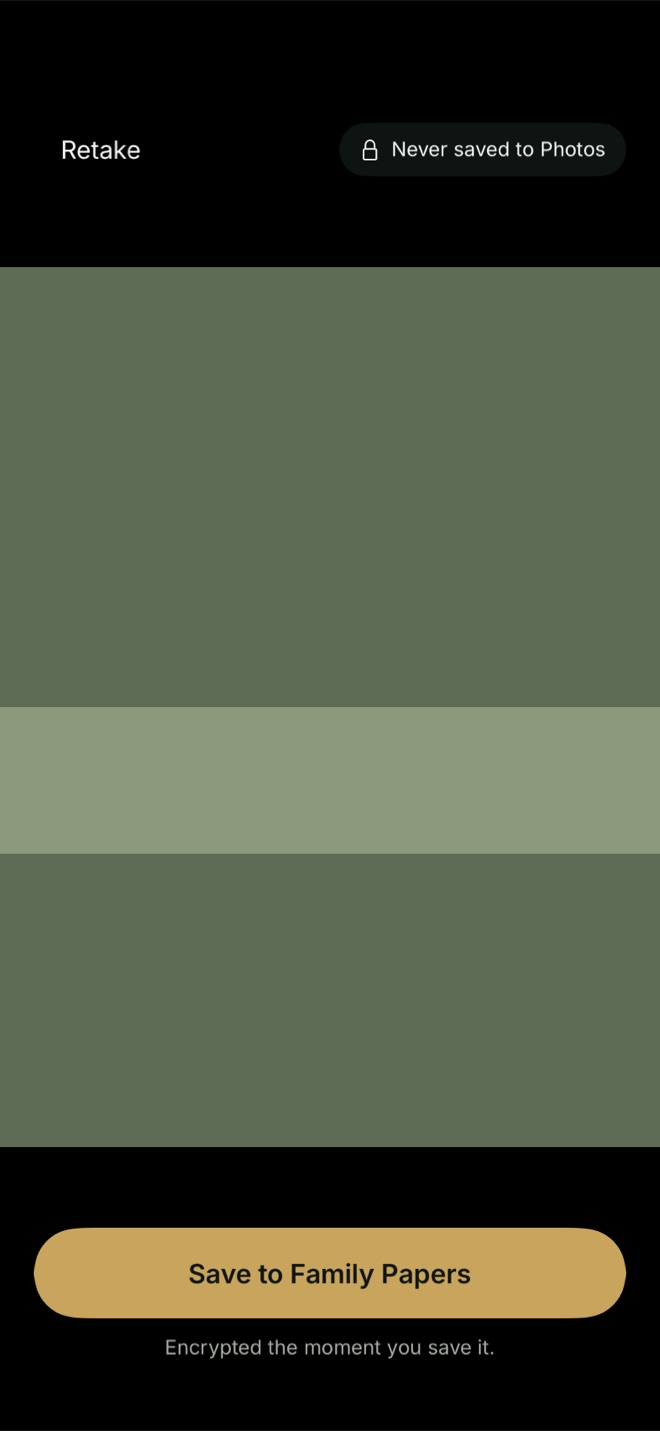
- Take the photo. On the review screen you’ll see Never saved to Photos.
- Tap Retake, or Save to Family Papers (the button names your vault).
What happens behind it:
- Photos stay in memory until you save, then go straight into the vault, encrypted. They’re never written to the Photos library, so iCloud Photos, Memories, Shared Library and widgets never see them.
- Videos are written only to protected temporary storage while recording, then encrypted into the vault.
- Permissions: Bunker asks for the camera the first time you use it, and for the microphone only the first time you record video. If you say no to the microphone, videos record silently with an Audio off badge.
- Music keeps playing while you take photos.
- Backup follows the vault: with Encrypted Backup on, new photos are backed up encrypted to your iCloud.
The limits:
- It opens only from inside an unlocked vault, not from the Lock Screen, widgets or Control Center. That’s on purpose, but it means a few extra seconds.
- It’s on iPhone and iPad. A Mac has no camera capture in Bunker.
- The free version holds 3 Vaults, with 100 photos and 10 videos in total. Bunker Pro removes the limits.
- If you forget the vault’s Pattern and lose its Recovery Phrase, we can’t recover those photos for you.
Other things to check
- Shared Library. If you’re in one, check Settings → Apps → Photos → Shared Library → Sharing from Camera before taking anything private with the Camera app.
- Location. Photos taken with Location Services on carry where they were taken. To stop Camera recording it, go to Settings → Privacy & Security → Location Services → Camera and choose Never. When you export from Bunker to Photos or share, “Remove location and camera details” is on by default.
- Screenshots of private things also land in Photos. Delete them, then empty Recently Deleted.
Already took it with Camera?
Move it now: import it into a vault, let Bunker delete the original from Photos when it asks, then open Collections → Recently Deleted in Photos and delete it there too. If iCloud Photos is on, deleting it removes it from iCloud Photos as well. Shared albums, messages or a shared library you already added it to keep their copies.
When you don’t need an app
If the photo isn’t sensitive and you only want it out of your main grid, take it with Camera and hide it; see how to hide photos on iPhone. If you need it off the camera roll only now and then, Notes with Save to Photos off does the job for free. A secure camera matters when you take private photos often, or when they must never reach iCloud Photos even for a moment.
Related: how to keep private photos out of iCloud and how to scan documents on iPhone.
Questions
Can I stop the Camera app saving to Photos?
No. The built-in Camera app always saves to your photo library, even when you open it from the Lock Screen. To skip the camera roll, take the photo in another app that stores it itself.
Do photos taken in Notes go to the camera roll?
Not unless Save to Photos is on in Settings → Apps → Notes. Apple's guide describes it as an option you turn on. The photo is then stored in the note, which syncs with your Notes account.
Does Bunker's camera save anything to Photos?
No. Photos stay in memory until you tap Save, then go straight into the vault, encrypted. Nothing is written to the Photos library.
Does the secure camera work on Mac?
No. On a Mac, Bunker offers scanning through Continuity Camera but no camera capture. It works on iPhone and iPad.