Encrypted Backup
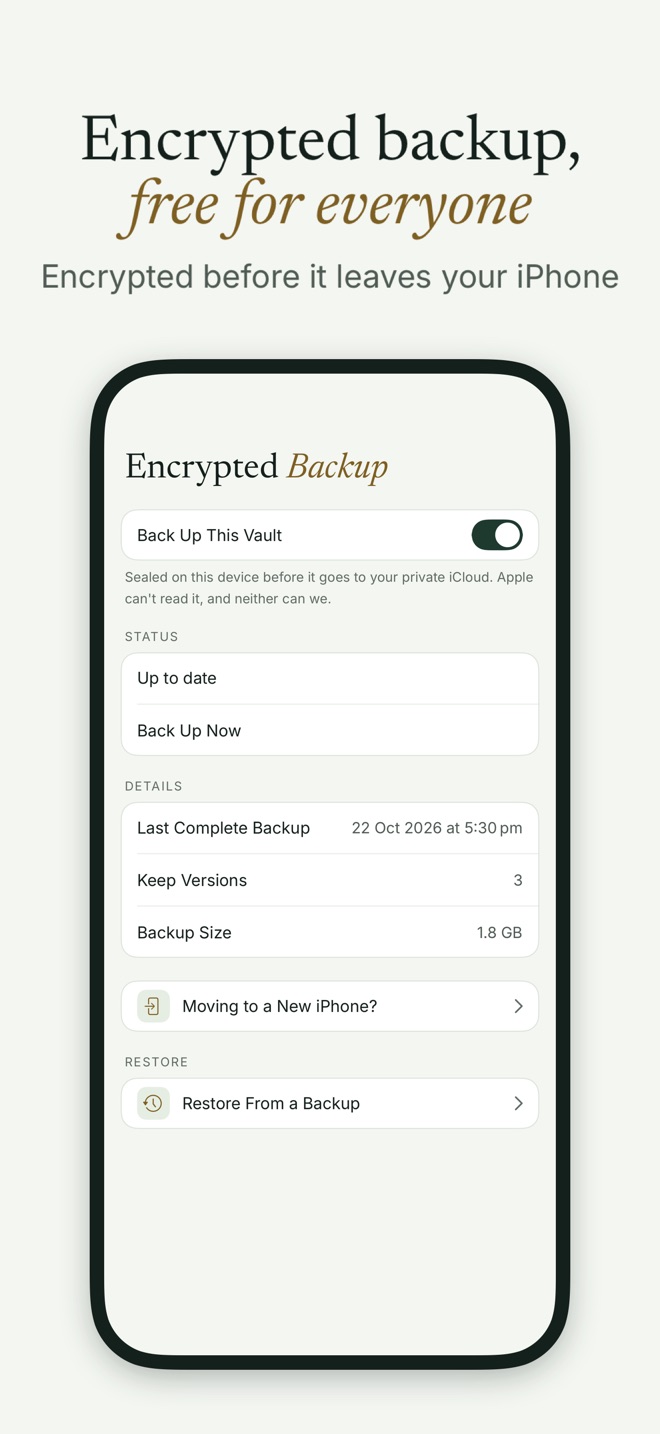
Encrypted Backup copies each vault to your own iCloud, encrypted on your device before it leaves, and it’s free for everyone. On a new device you restore a vault with its Pattern or its Recovery Phrase, and the photos come back exactly as they were.
How it works
Backup is on by default for every new vault. When you open a vault and more than 24 hours have passed since its last backup, Bunker backs it up, on Wi-Fi unless you allow App Settings → Storage & Backup → Use Cellular Data. You can also tap Back Up Now in Vault Settings → Encrypted Backup, which shows progress, the last complete backup, and the backup’s size.
A backup only runs while that vault is open, because Bunker drops a vault’s keys the moment it locks. If you rarely open a vault, open it now and then so its backup stays current.
What goes to iCloud:
- Your vault’s encrypted blocks, sealed a second time before upload, so a copy of the phone’s files can’t be matched to the iCloud records.
- Records padded to fixed sizes, plus a few decoy records of random bytes, so their count and size say little. Decoys cost each vault about 4 to 12 MB of your iCloud storage.
- The last 3 versions of the vault, so a bad change isn’t the only copy. A device never applies a version older than the newest it has seen.
Everything is stored in your private iCloud database, in Bunker’s own area. It’s encrypted by Bunker whether or not you turn on Apple’s Advanced Data Protection.
The keys behind it
The backup opens with a key made from your Pattern through Argon2id at 256 MiB, mixed with a random salt tied to your Apple Account and a secret kept in iCloud Keychain. Your Recovery Phrase opens it too. Changing your Pattern re-wraps the key; it doesn’t re-upload your photos.
Restoring a vault
- By Pattern, on a device with nothing stored in Bunker yet (a fresh install). Choose Restore from iCloud and draw the vault’s Pattern; Bunker shows when it was last backed up and offers to restore it. Restore Another Vault brings back the next one the same way. This needs iCloud Keychain on and the same Apple Account.
- By Recovery Phrase, any time, on any device signed in to the same Apple Account: on the unlock screen, choose Open a Shared or Legacy Vault → My Vault From iCloud.
Why only by Pattern on an empty device? Looking up iCloud on every unknown Pattern would make unlocks slower or faster depending on the answer, which could reveal vaults. It also keeps a Duress Vault honest: after one, the cleared vaults come back only with their phrases.
To turn on iCloud Keychain on iOS 18 and later: Settings → your name → iCloud → Passwords → Sync this iPhone.
Moving to a new iPhone
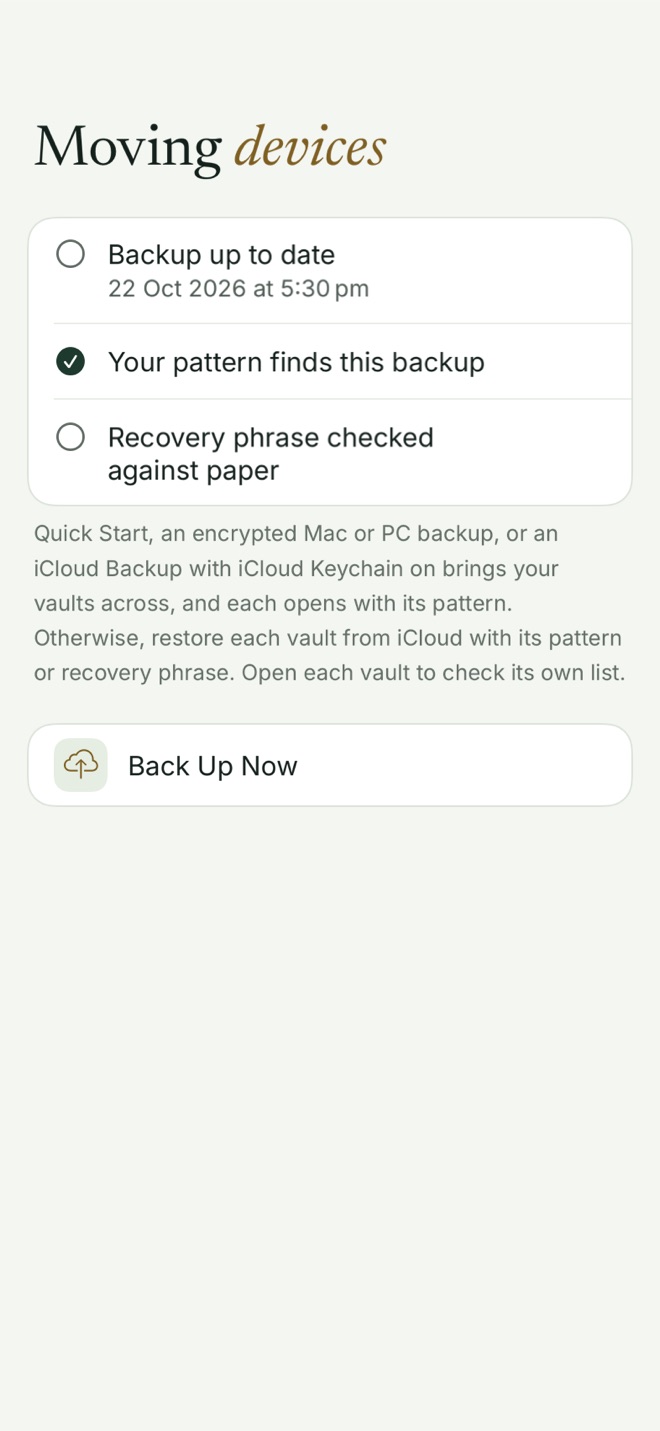
Before you switch, open each vault and go to Vault Settings → Encrypted Backup → Moving to a New iPhone? (Moving to a New Mac? on a Mac). The checklist shows whether the backup is up to date, whether your Pattern finds it, and whether you’ve checked your Recovery Phrase against your paper copy.
Then:
- Quick Start, an encrypted Mac or PC backup, or an iCloud Backup with iCloud Keychain on: your vaults come across and each opens with its Pattern.
- An unencrypted computer backup, or iCloud Keychain off: the device secret stays behind, so restore each vault from iCloud with its Pattern or Recovery Phrase.
Turning it off
Turning backup off for a vault deletes that vault’s backup from iCloud after a confirmation that names it. The vault on your device isn’t touched, and sync stops for it too.
What it protects against
- Losing or breaking your phone, or moving to a new one.
- Apple, Bunker, and anyone who reads iCloud’s storage without your keys: they see padded ciphertext.
What it doesn’t protect against
- Losing your Apple Account. The backup lives there.
- Forgetting both the Pattern and the Recovery Phrase. Nobody can open the backup then.
- Someone who can read your iCloud Keychain (your Apple Account plus a trusted device or its passcode) guessing a weak Pattern offline. Argon2id slows them; it doesn’t stop them. A longer Pattern with more turns, or a Passphrase, makes each guess count for much less.
- Patterns of activity in iCloud. Each vault backs up separately, so someone reading your iCloud data can estimate how many vaults back up and roughly how large they are.
- A Duress Vault. Backups are deliberately untouched by it.
Related
- Device sync across iPhone, iPad and Mac, built on the same backup.
- Pattern Encryption and the Recovery Phrase.
- Hidden Vaults: each vault backs up on its own.
- Support if a restore doesn’t go as expected.
Questions
Is Encrypted Backup free?
Yes, on every plan. It uses your own iCloud storage, so Apple's storage limits for your account apply.
Can Apple or Bunker see my backed-up photos?
No. Each vault is encrypted on your device before anything is uploaded, with keys that only its Pattern or Recovery Phrase can unlock. iCloud stores ciphertext.
I got a new iPhone. How do I get my vaults back?
Quick Start, an encrypted computer backup, or an iCloud Backup with iCloud Keychain on brings them across, and each opens with its Pattern. Otherwise, install Bunker, sign in to the same Apple Account and restore each vault from iCloud with its Pattern or its Recovery Phrase.
What if I sign in to a different Apple Account?
The backup lives in the Apple Account it was made with. Restoring needs that same account.