Guide
How to scan documents on iPhone and keep them private
To scan a document on iPhone, open a note in Notes, tap the Attachments button and tap Scan Documents, or in Files tap the More button and choose Scan Documents; hold the page in view and your iPhone captures it as a PDF. For receipts and forms that’s all you need. For a passport, ID or medical record, also think about where the PDF is stored, because a scan in Notes can’t be locked, and both Notes and Files usually sync to iCloud.
Notes and Preview steps checked against Apple’s iPhone User Guide for iOS 27 on Oct 24, 2026. The Files path is from third-party guides; see the note below.
Scan with Notes
- Open Notes and open a note (or start a new one).
- Tap the Attachments button (the paperclip), then tap Scan Documents.
- Hold your iPhone so the page is on screen. Adjust Flash or Filters if you want.
- Automatic: keep the phone steady; it captures when it finds the page edges.
- Manual: tap the shutter, adjust the corners, then tap Keep or Retake.
- Scan more pages, then tap the done button.
The document is saved as a PDF inside the note. Notes also has Scan Text, which inserts the words from a page as editable text instead of an image.
Scan with Files or Preview
Files: open a folder, tap the More button (three dots), and choose Scan Documents. The PDF is saved in that folder.
Preview (iOS 26 and later): open Preview, tap Scan Documents, capture the pages, tap the thumbnails to crop, rotate or adjust the color, then tap the done button.
Where your scan ends up
| Scanned with | Saved as | Stored in | Can you lock it? |
|---|---|---|---|
| Notes | PDF inside a note | The note’s account: iCloud, or On My iPhone | No. Apple says notes with PDF attachments can’t be locked |
| Files | The folder you chose: iCloud Drive or On My iPhone | Not in Files | |
| Preview | The folder you chose: iCloud Drive or On My iPhone | Not that we could confirm |
The Notes row surprises people. You can lock a note with a photo in it, but not one with a scan, because the scan is a PDF. So a scanned passport in Notes sits unlocked, readable by anyone who opens Notes on your unlocked phone.
On iCloud, notes and iCloud Drive files use Apple’s standard data protection unless you turn on Advanced Data Protection, which makes both end-to-end encrypted. See Advanced Data Protection, explained.
Scan privately with Bunker
Bunker’s scanner uses the same Apple document camera, so capturing feels the same. What’s different is what happens after you tap the shutter:
- In a vault, tap + and choose Scan Document.
- Capture your pages.
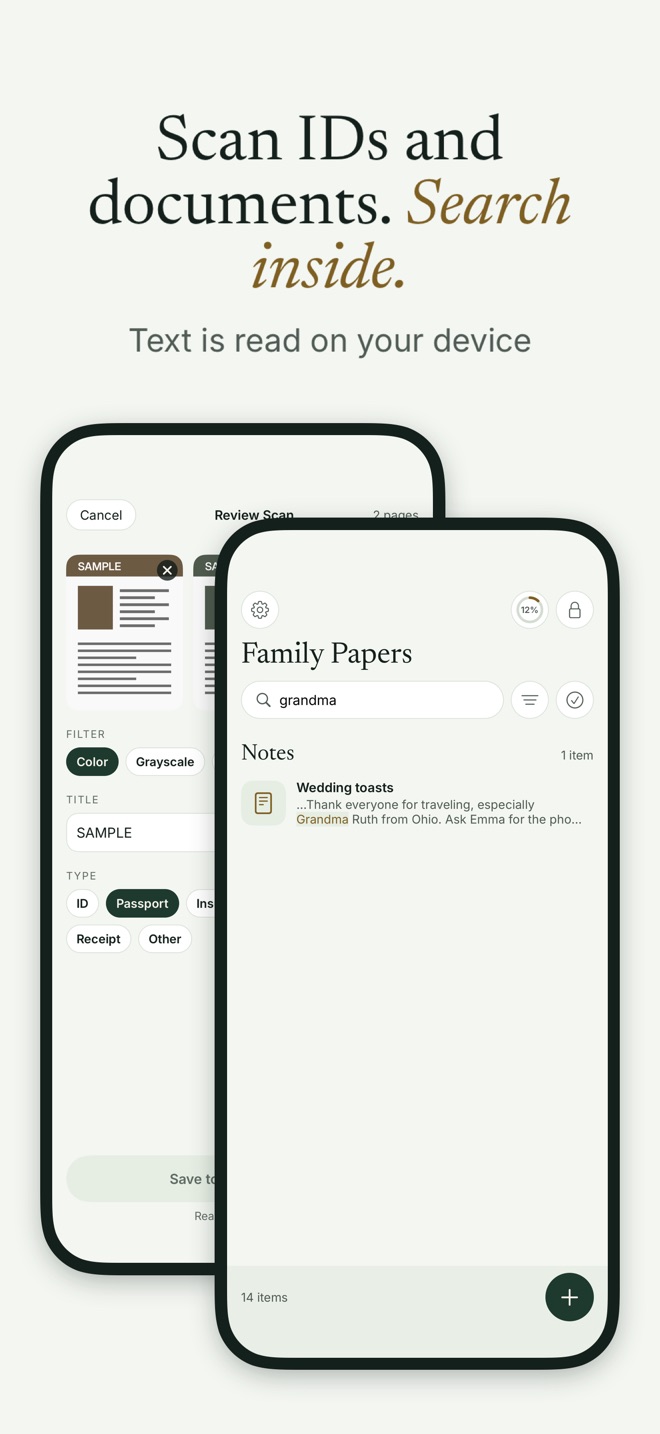
- On Review Scan, drag pages to reorder, remove any you don’t want, and choose a filter: Color, Grayscale or Black & White.
- Check the Title. Bunker fills it from the first line of text it reads, or with the date, like “Scan Mar 14, 2031”.
- Pick a Type: ID, Passport, Insurance, Medical, Tax, Receipt or Other.
- Tap Save to Family Papers (the button names your vault).
Behind that:
- The PDF never exists as a plain file. Bunker builds it in memory and encrypts it straight into the vault, so no readable copy is written to your iPhone’s storage.
- Text is read on your iPhone. Bunker runs Apple’s on-device text recognition and adds an invisible text layer to the PDF, so you can search inside your scans and select text in the viewer. The text is stored inside the encrypted vault, and vault content never appears in Spotlight.
- The backup is encrypted too. With Encrypted Backup on, the scan goes to your iCloud already encrypted, so it doesn’t depend on Advanced Data Protection.
- It’s free. The scanner and search are in every tier. The free version holds 20 documents and notes in total, across up to 3 Vaults.
On a Mac, Bunker scans through Continuity Camera with a nearby iPhone or iPad. See Bunker for Mac.
The limits: anyone with your unlocked phone who knows the vault’s Pattern can open the scan. Screenshot blocking is best-effort, and another camera can photograph the screen. And text recognition works best on clear, flat, well-lit pages; check important numbers by eye.
Tips for better scans
- Lay the page flat on a dark, plain surface so the edges stand out.
- Use daylight or an even lamp. Flash can wash out laminated cards.
- For ID cards, scan both sides as one document, so they stay together.
- Choose Black & White for text-only pages; it’s the most readable and the smallest file.
- Scan, then shred is not always right. Keep originals of passports, birth certificates and anything with a seal. A scan is a copy, not a replacement.
Clean up after scanning
If you scanned with another app first, remove the copies:
- Delete the note or file, then empty Recently Deleted in Notes or Files.
- Check Photos for any photo of the document you took before scanning, then empty Recently Deleted there too.
When you don’t need an app
For receipts, recipes and forms you’ll send back the same day, Notes or Files is perfect, and it’s already on your iPhone. If the document is sensitive but you’d only ever open it on your own phone, keeping the scan in a folder On My iPhone, out of iCloud Drive, is a reasonable step. Use an encrypted vault when the document would cause real harm in the wrong hands: identity papers, medical records, tax returns.
Next: how to store passport and ID copies safely, and for papers your family may need one day, where to keep important documents.
Questions
Can I lock a scanned document in Notes?
No. A scan in Notes is saved as a PDF, and Apple says you can't lock notes with PDF attachments. To keep a scan behind a password, store it somewhere else.
Are iPhone scans stored in iCloud?
Often, yes. Notes in your iCloud account and files in iCloud Drive sync to iCloud. With standard data protection Apple holds the keys; with Advanced Data Protection both are end-to-end encrypted.
Does text recognition send my document anywhere?
Apple's Live Text runs on the device. Bunker's scanner also reads text on your iPhone, and the text is stored inside the encrypted vault.
What's the safest way to scan a passport?
Scan it into storage that's encrypted with a key only you hold, remove any copies from Photos and Files, and make sure the backup is encrypted too.