Guide
How to move a photo vault to a new iPhone
To move a photo vault to a new iPhone, finish a backup of every vault and check its Recovery Phrase on the old phone, transfer with Quick Start or an encrypted backup, then open each vault on the new phone before you erase the old one. Moving phones is one of the most common ways people lose vault photos, usually because the old phone was erased before anyone checked. In Bunker, the moving checklist in Vault Settings → Encrypted Backup → Moving to a New iPhone? does most of the checking for you.
Quick Start and restore steps checked against Apple’s “Use Quick Start to transfer data” and “Restore all content from a backup” pages on Oct 24, 2026.
Before you start: on the old iPhone
Do this the day before, so backups have time to finish.
- Update both phones to the latest iOS and update Bunker.
- Back up every vault. Open each vault, go to Vault Settings → Encrypted Backup and tap Back Up Now. Wait until it says Up to date. Remember: Bunker has no list of vaults, so only you know how many you have. Open each one by its Pattern.
- Run the checklist for each vault. In Encrypted Backup, tap Moving to a New iPhone?
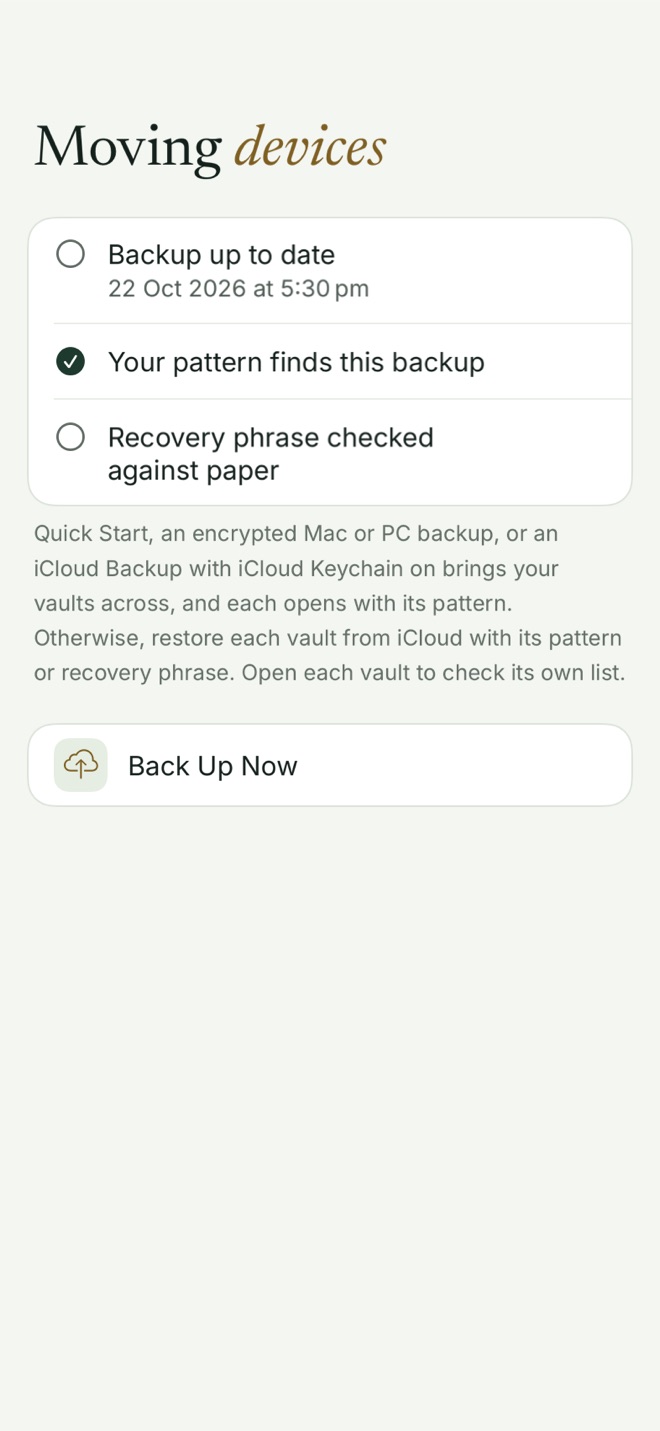
The 3 items:
- Backup up to date, with the time of the last complete backup.
- Your pattern finds this backup: the vault’s Pattern will be able to find it in iCloud on a fresh install.
- Recovery phrase checked against paper: you’ve retyped the phrase from your paper copy, so you know the paper is right. If it isn’t ticked, go to Vault Settings → Recovery Phrase and tap Check My Paper Copy.
- Check iCloud Keychain is on in Settings → your name → iCloud → Passwords (it’s called Passwords and Keychain on some versions). Bunker uses it to carry part of each vault’s key to your new phone.
Choose how to transfer
How you move your iPhone decides whether vaults open straight away with their Pattern:
| Transfer method | Vaults open by Pattern on the new iPhone? |
|---|---|
| Quick Start, transferring directly from the old iPhone | Yes |
| Quick Start, downloading from iCloud Backup, with iCloud Keychain on | Yes |
| Encrypted Mac or PC backup | Yes |
| Unencrypted Mac or PC backup | No: restore each vault from Encrypted Backup |
| iCloud Backup with iCloud Keychain off | No: restore each vault from Encrypted Backup |
| Setting up as new | No: restore each vault from Encrypted Backup |
Every row ends with your vaults on the new phone, as long as Encrypted Backup was on. The “No” rows just take an extra step per vault.
Quick Start, step by step
- Make sure the old iPhone is on Wi-Fi with Bluetooth on. Unlock it and go to the Home Screen.
- Turn on the new iPhone and place it next to the old one. Follow the prompt on the old iPhone.
- Connect the new iPhone to Wi-Fi or cellular, and set up Face ID.
- Choose how to transfer: download from iCloud, so you can use the new phone straight away while apps and data arrive in the background, or transfer directly from the old iPhone, which means waiting for both to finish.
- Keep both phones close together and on power until the transfer is complete.
Apple notes that Quick Start occupies both devices for a while, so pick a time when you won’t need your old phone. If you use Stolen Device Protection, setting up a new device from your iPhone away from familiar places needs Face ID.
On the new iPhone
- Open Bunker once the app has finished downloading.
- Draw each vault’s Pattern. Each should open as before.
- Open a few items in each vault: a photo, a video, a scanned document.
- If some items are missing after a partial transfer, the vault still opens; Bunker marks the missing items and offers to fetch them from your backup.
If a vault doesn’t open by Pattern
That’s expected after an unencrypted computer backup, an iCloud Backup with iCloud Keychain off, or a fresh setup. Restore it from Encrypted Backup:
- If nothing is stored in Bunker yet on the new phone, and iCloud Keychain is on: draw the vault’s Pattern, and Bunker offers to restore it from iCloud. You can restore several vaults this way in one go, with Restore Another Vault.
- Otherwise: on the unlock screen, tap Use Recovery Phrase, type the vault’s phrase, and choose a Pattern. Bunker restores it from iCloud.
Restored vaults become usable as items arrive, most recent first.
Only then: the old iPhone
When every vault opens on the new phone and shows its items, you can erase the old one. Until then, keep it. It’s your last copy if anything went wrong.
If you have Bunker Pro and use Sync, your vaults also stay on your iPad and Mac. On a device that already has vaults, adding one from iCloud needs its Recovery Phrase. Joining by Pattern works only while the device has nothing stored yet.
Moving to a new Mac or iPad
The same steps work. On a Mac, the row in Encrypted Backup is Moving to a New Mac?. Use Migration Assistant or a fresh install, and check FileVault is on afterward. See Bunker for Mac.
What can go wrong, and what can’t be fixed
- Erasing the old phone too soon is the one mistake that a checklist prevents.
- A vault with backup off exists only on the old phone. Turn backup on before you move, or move it by Quick Start or an encrypted computer backup.
- A lost Recovery Phrase plus a forgotten Pattern can’t be recovered, by you or by us. That’s the cost of a vault nobody else can open.
- A Duress Vault opened on the old phone removed your other vaults from it. They’re still in iCloud, and each comes back with its Recovery Phrase.
When you don’t need an app
Everything in your Photos library moves with Quick Start or iCloud Photos on its own; Apple handles that well. The checklist above is for what you keep in a vault. If you don’t use one, Apple’s transfer is all you need.
Related: how to back up a photo vault, Encrypted Backup, and Advanced Data Protection, explained.
Questions
Will my vaults come over with Quick Start?
Yes. Quick Start brings Bunker's data with the rest of your iPhone, and every vault opens with its Pattern, as long as iCloud Keychain is on when you choose to download from iCloud. Check each one before you erase the old phone.
What if I restore from an unencrypted computer backup?
Bunker's data comes back, but the part of the key that stays on the device doesn't, so vaults won't open by Pattern from that copy. Restore each from Encrypted Backup with its Pattern or Recovery Phrase instead.
Do I need Bunker Pro to move my vaults?
No. Encrypted Backup and restore are free. Bunker Pro adds Sync, which keeps vaults on several devices at once.
I erased my old iPhone and a vault won't open. What now?
If its Encrypted Backup was on, open Bunker, tap Use Recovery Phrase, and type the phrase; Bunker restores the vault from iCloud. If its backup was off, the vault was only on the old phone, and we can't recover it.