Guide
How to hand over your phone safely
If someone borrows your iPhone, use Guided Access to keep it in one app, and lock or hide the apps you don’t want opened. If someone pressures you to unlock it, a few tools help: pressing the side and volume buttons for 2 seconds makes Face ID ask for your passcode, locked apps stay locked, and a Duress Vault in Bunker can open in place of your real vaults. Each has limits, and it’s better to know them calmly in advance than to learn them in the moment.
This guide is practical, not legal. Rules on searching phones differ by country and situation, and we can’t tell you what to do in a legal sense. If you expect a search, for example at a border, get advice from a lawyer or a digital rights organization before you travel.
Settings checked against Apple’s iPhone User Guide (iOS 27) and Apple’s Face ID and Stolen Device Protection articles on Oct 24, 2026.
Three different situations
| Situation | What helps most |
|---|---|
| A friend or child borrows your phone | Guided Access, locked apps, hidden previews |
| Your phone is stolen, or someone learned your passcode | Stolen Device Protection, a longer passcode, locked apps |
| Someone you can’t refuse wants it unlocked | Face ID off in one press, nothing extra on the phone, a Duress Vault as a last layer |
Prepare once
These take 10 minutes and help in every situation:
- Lock or hide private apps. Touch and hold the app, tap Require Face ID, or Hide and Require Face ID. See how to hide apps on iPhone.
- Hide notification previews. Settings → Notifications → Show Previews → When Unlocked. Messages then don’t show on the Lock Screen.
- Use a longer passcode. Settings → Face ID & Passcode → Change Passcode → Passcode Options.
- Turn on Stolen Device Protection. Settings → Face ID & Passcode → Stolen Device Protection. Away from familiar places like home or work, Apple says opening a locked app, using saved passwords and erasing the phone need Face ID, with no passcode fallback, and changing your Apple Account password needs an extra hour’s wait. Choose Always under Require Security Delay if you want that at home too.
When you lend your phone: Guided Access
Guided Access keeps the iPhone in one app until you end it.
Set it up once:
- Settings → Accessibility → Guided Access, turn it on.
- Tap Passcode Settings → Set Guided Access Passcode, and choose one that’s different from your iPhone passcode.
- Optionally turn on Accessibility Shortcut so a triple-click of the side button starts it.
To use it: open the app (Photos showing one album, a game, a map), start Guided Access with the Accessibility Shortcut, Control Center or Siri, circle any parts of the screen you want to disable, tap Start, and hand the phone over. To end it, triple-click the side button and enter the Guided Access passcode.
One thing to know: Apple says Crash Detection and emergency calls aren’t available during a Guided Access session.
When someone wants it unlocked
Make Face ID wait for your passcode. Press and hold the side button and either volume button for about 2 seconds. When the sliders appear, let go and tap Cancel. Apple says the passcode is then required before Face ID works again, so nobody can unlock your phone by holding it up to your face.
Don’t keep holding the buttons: with Call with Hold and Release on (in Settings → Emergency SOS), holding starts a countdown to call emergency services.
Lock your vaults. In Bunker, tap the lock button in the vault header. Bunker also locks when the screen locks, when you leave the app (immediately, unless you chose a delay in App Settings → Lock When Leaving), and after 5 minutes without use. Bunker doesn’t use Face ID, so once a vault is locked, only its Pattern, Passphrase or Recovery Phrase opens it.
Carry less. The most reliable protection is not having something on the phone. If a vault is backed up and you know its Recovery Phrase, it can live on another device for a trip. See how to back up a photo vault.
Bunker’s Duress Vault, and its real limits
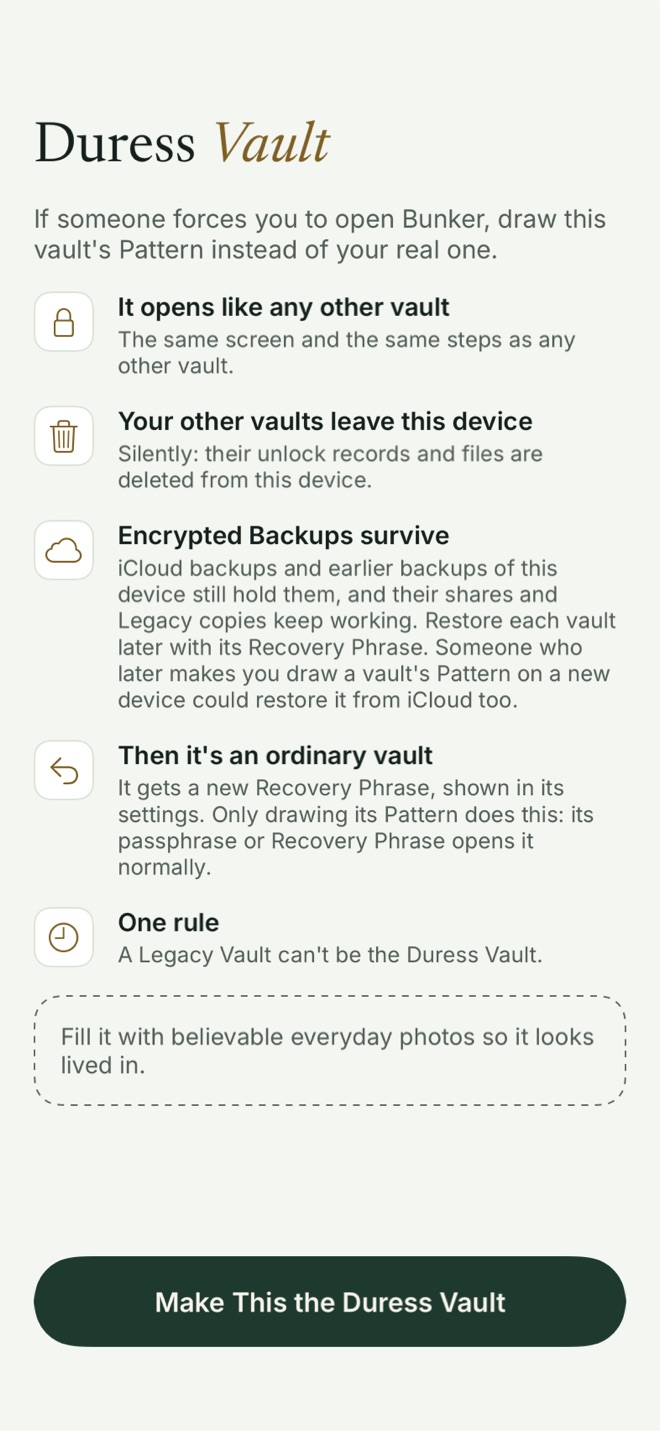
A Duress Vault is a vault you set up in advance, part of Bunker Pro. If someone forces you to open Bunker, you draw its Pattern instead of your real one.
What happens:
- It opens with the same screen, timing and steps as any other vault. Nothing on screen shows that it’s a duress open.
- Your other vaults leave this device, silently: their unlock records and their encrypted files are deleted from it.
- Afterward it’s an ordinary vault with a new Recovery Phrase, shown in its settings. Only drawing its Pattern triggers this; its Passphrase or Recovery Phrase opens it normally.
What it doesn’t do:
- It only clears this device. Your iCloud backups, your other devices and earlier backups of this device still hold your other vaults. That’s how you get them back later, one at a time, each with its Recovery Phrase.
- Someone can still reach the backups. If someone later makes you draw a vault’s Pattern on a new device, they could restore it from iCloud.
- It can’t hide that Bunker is installed, or that Bunker has a duress feature, which is on our website for anyone to read.
- It can’t be undone on the device. Once used, your other vaults are gone from that phone until you restore them.
- A Legacy Vault can’t be the Duress Vault.
Fill the Duress Vault with believable everyday photos, so it looks lived in. And think about whether you need it at all: for most people, the steps above are enough.
Why we keep it calm
Fear makes people rush, and rushing makes mistakes: a Pattern drawn in view of someone, a wipe that wasn’t needed, a Recovery Phrase lost in the panic. Prepare once, keep your Recovery Phrases on paper somewhere safe, and in the moment, do one thing at a time.
When you don’t need an app
For lending your phone to friends and family, Apple’s tools are all you need: Guided Access, locked apps and hidden previews. Stolen Device Protection covers most theft. A vault, or a Duress Vault, matters only when the people asking can make you unlock the phone, and even then, carrying less is the strongest step.
Related: Bunker’s security overview, how to lock photos on iPhone, and Hidden Vaults.
Questions
How do I quickly turn off Face ID?
Press and hold the side button and either volume button for 2 seconds. Apple says your passcode is then required before Face ID works again. Let go once the sliders appear; don't hold longer, because with "Call with Hold and Release" on, holding starts an emergency call countdown.
Can someone get out of Guided Access?
Only with your Guided Access passcode or Face ID. Note that Apple says Crash Detection and emergency calls aren't available during a Guided Access session.
Does a Duress Vault delete my photos for good?
It removes your other vaults from that device only. Your iCloud backups, your other devices and earlier device backups still hold them, and each comes back with its Recovery Phrase.
Is it legal to refuse to unlock my phone at a border?
It depends on the country and your situation, and we can't give legal advice. If you're worried, talk to a lawyer or a digital rights organization before you travel.