Guide
How to hide photos on Mac
To hide photos on a Mac, open Photos, select them, choose Image → Hide [number] Photos and click Hide. They move to the Hidden album, which Photos keeps out of the sidebar and locks with Touch ID or your login password by default. That keeps them out of view in Photos; it doesn’t give them a separate lock, and the rest of your Mac has its own ways of showing photos.
Steps checked against Apple’s Photos User Guide for macOS Sequoia 15 and macOS 27 on Oct 24, 2026.
Hide photos in Photos
- Open Photos and click Library in the sidebar.
- Select the photo or photos.
- Choose Image → Hide [number] Photos, then click Hide.
They disappear from your library and albums. Nothing is deleted. If iCloud Photos is on, they’re hidden on your iPhone and iPad too.
Find them again
- In Photos, click Library, then choose View → Show Hidden Photo Album.
- Click Hidden, below Utilities in the sidebar. On macOS 27, if you don’t see it, hold the pointer over Utilities and click the arrow to expand it.
- If the album is locked, click View Album and unlock with Touch ID or your password.
To unhide: on macOS 27, Control-click the photos and choose Unhide [number] Photos. On macOS Sequoia 15, select them and choose Image → Unhide [number] Photos.
When you’re done, choose View → Hide Hidden Photo Album so it leaves the sidebar again.
Check the lock
By default the Hidden and Recently Deleted albums need Touch ID or your password. To check: Photos → Settings → General, and under Privacy, make sure Use Touch ID or password is selected.
The lock is your Mac login, so anyone who knows your login password can open the album.
Other places a Mac shows your photos
Hiding works inside Photos. A Mac has other ways to surface pictures:
- Memories and featured photos. In Photos → Settings → General, under Memories, you can turn off Show Featured Content, Show Holiday Events and Show Memories Notification. More in how to stop photos showing in Memories and widgets.
- Files outside Photos. A photo in Downloads, Desktop or a Messages attachment folder isn’t in Photos, so hiding doesn’t apply. Search Finder for images, or use Spotlight, to find strays.
- Recent Items and Quick Look. Files you open in Preview or another app can show up under Apple menu → Recent Items and in apps’ recent lists.
- Time Machine. Your Photos library, hidden photos included, is backed up like any other file. Encrypt the Time Machine disk.
- Shared accounts. If two people use one macOS user account, they share one Photos library. Give each person their own account in System Settings → Users & Groups.
Turn on FileVault
On a Mac with Apple silicon or a T2 chip, data is already encrypted. Apple says FileVault adds the requirement that nobody can decrypt it without your login password. On older Macs, FileVault is what encrypts the disk at all.
Apple menu → System Settings → Privacy & Security → FileVault, then turn it on. Choose your iCloud account or a recovery key as the way to unlock the disk if you forget your password, and keep the key somewhere other than the Mac.
When the Hidden album is enough
If you’re the only person who uses your macOS account and you just want photos out of the grid when you share your screen, the Hidden album is enough. Add FileVault and a strong login password, and you’ve covered the common risks. Our comparison with Apple’s Hidden album says where Apple’s tool is the better choice.
When a vault on your Mac helps
A separate vault makes sense when someone else knows your Mac password, when you don’t want certain photos in iCloud Photos at all, or when you keep scanned documents alongside photos.
Bunker for Mac is a native Mac app, not an iPhone app in a window. Each vault is encrypted and opens only with its Pattern, which you draw with the mouse or trackpad, or with a Passphrase you type.
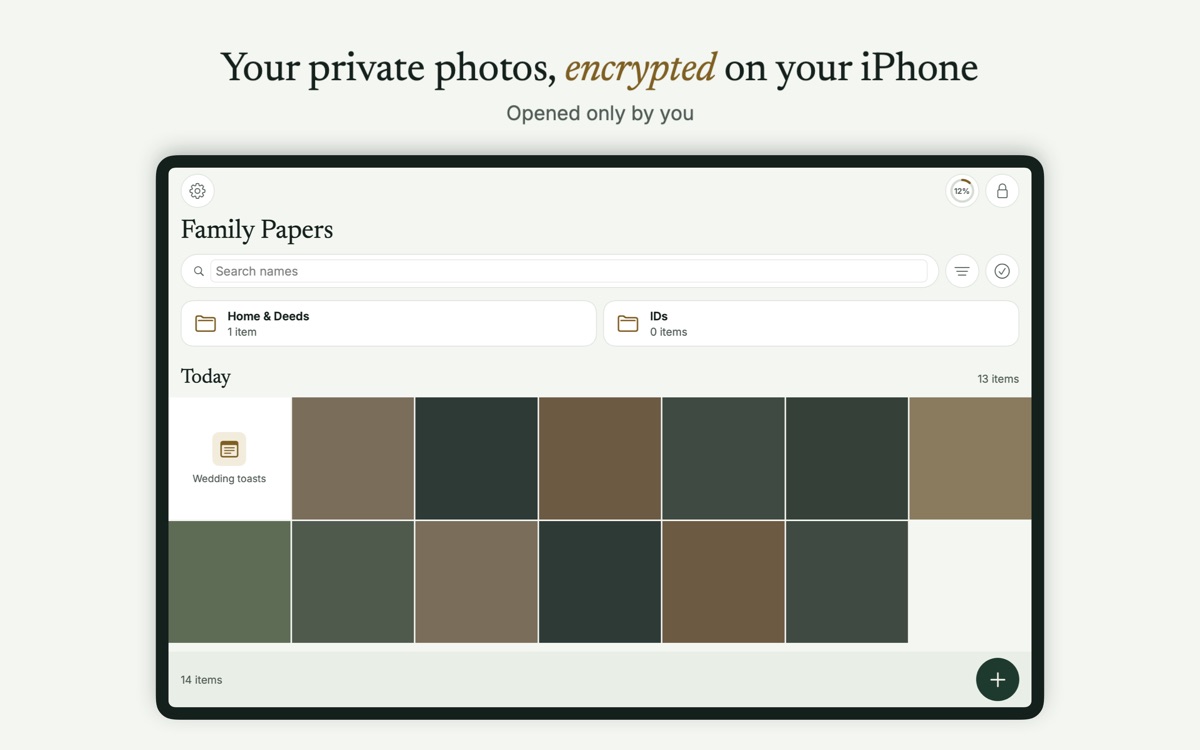
What it does differently on a Mac:
- Drag photos in from Finder or Photos, and drag them out to export.
- Vault content stays out of Recent Items, Spotlight and Time Machine. Temporary files live in a folder excluded from backups and indexing, and previews open inside the app.
- Locks when the screen locks, when the Mac sleeps, when you switch users, and after 5 minutes without use.
- Screen capture: vault windows ask macOS to exclude them from screenshots and recordings. Some capture tools may not honor that, so treat it as best-effort.
- Scanning works through Continuity Camera with a nearby iPhone or iPad. There’s no camera capture on the Mac.
- With Bunker Pro, your vaults sync between iPhone, iPad and Mac through your own iCloud, encrypted end to end. See Sync.
The limits: macOS doesn’t use iOS’s per-file data protection, so while a vault is open, Bunker’s temporary files are protected at rest only by FileVault, so turn it on as shown above. Someone who knows your Pattern can open that vault, and if you forget it and lose your Recovery Phrase, nobody can open it, including us.
Moving photos from Photos into a vault
- In Photos, select the photos and drag them into the open vault in Bunker.
- Check they’ve arrived, then delete them from Photos.
- In Photos, open Recently Deleted and delete them there too; otherwise they stay for 30 days, and in iCloud Photos on your other devices.
Related: how to hide photos on iPhone and how to keep private photos out of iCloud.
Questions
Where are hidden photos on a Mac?
In Photos, choose View → Show Hidden Photo Album. Hidden then appears in the sidebar under Utilities. Click it and unlock with Touch ID or your password.
Do hidden photos on my Mac also hide on my iPhone?
Yes, if iCloud Photos is on for both. Hidden status syncs with the photo, so it's hidden on every device signed in to the same Apple Account.
Can another user on my Mac see my photos?
Not in Photos, if they have their own macOS user account and your files are in your account. They can if they sign in as you, or if you share one account.
Are hidden photos encrypted on a Mac?
They're in your Photos library like any other photo, protected by FileVault at rest. They aren't encrypted with a separate key.